

In this article
Home Assistant timers can be defined in YAML or created through the user interface. The timer.reload action applies to only one of those sources:
timer.reloadreloads YAML-defined timers. It does not add, update, or remove timers created through the UI. (Home Assistant: Reload timers)
Its purpose is to apply changes to YAML timer configuration without restarting Home Assistant. Only administrators can run it, and it has no options in either YAML or the visual editor. (Home Assistant: Reload timers)
That makes timer.reload a configuration operation, not a substitute for canceling or completing a countdown.
The configuration boundary
| Item | Documented purpose | Important boundary |
|---|---|---|
| YAML-defined timer | A timer declared under timer: in Home Assistant configuration |
Changes can be applied with timer.reload |
| UI-created timer | A timer helper created through Home Assistant’s interface | timer.reload does not add, update, or remove it |
timer.reload |
Reloads timers from YAML without restarting Home Assistant | Requires administrator rights and has no options |
timer.cancel |
Stops a running or paused timer and resets it to its last initial value | Does not fire timer.finished |
timer.finished |
Triggers when a timer reaches zero or is ended with Finish timer | A countdown outcome, not a documented reload outcome |
The deciding factor is where the timer’s definition is maintained. Timers can belong to the same integration while being managed through different configuration paths.
Reloading YAML-defined timers
Home Assistant supports timer definitions under the timer: key in configuration.yaml. Its documentation provides this example: (Home Assistant: Timer integration)
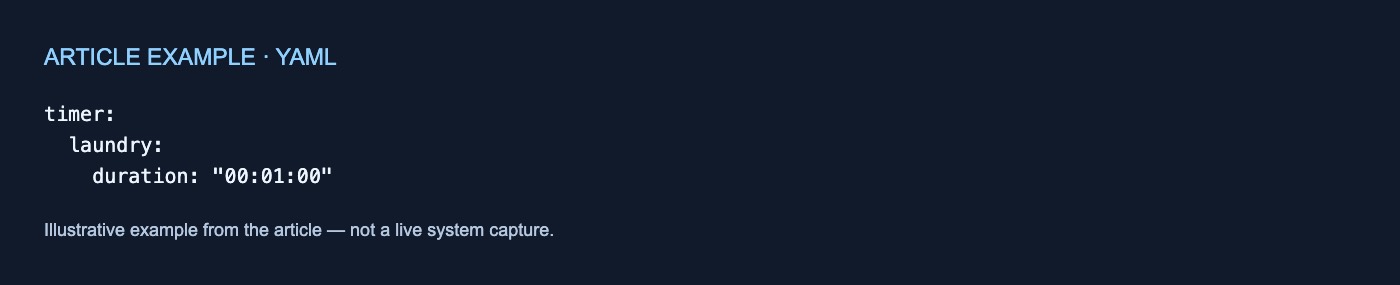
timer:
  laundry:
    duration: "00:01:00"
After changing a YAML-defined timer, run:
action: timer.reload
This asks Home Assistant to apply the changed YAML timer configuration without a restart. The same action is available in the visual automation and script editor as Timer: Reload timers. It has no configurable action options. (Home Assistant: Reload timers)
Only a user with administrator rights can run the action. That authorization requirement applies even though timer.reload has no fields or targets to configure. (Home Assistant: Reload timers)
The YAML ownership rule also applies when removing a timer. The documented procedure is to remove the timer from configuration.yaml and then reload or restart Home Assistant. (Home Assistant: Timer integration)
The basic workflow is therefore:
- Edit or remove the timer definition in YAML.
- Save the configuration.
- Run
timer.reload, or restart Home Assistant.
UI-created timers are outside the reload boundary
Timers created through Home Assistant’s UI are not part of the YAML configuration handled by timer.reload. Running the action does not add, update, or remove those timers. (Home Assistant: Reload timers)
For example, consider a setup with:
timer.laundry, defined inconfiguration.yamltimer.bathroom_fan, created through the Helpers interface
Changes to the YAML definition of timer.laundry fall within the documented purpose of timer.reload. The action does not modify the UI-created definition for timer.bathroom_fan.
To remove a timer created through the UI, go to Settings > Devices & services > Helpers, select the timer, and delete it there. (Home Assistant: Timer integration)
This is the central ownership boundary: use reload for YAML definitions and the Helpers interface for UI-created timers. The documentation supplied here does not establish a procedure for moving a timer between those configuration methods.
Reloading is not canceling
If the goal is to stop a running or paused countdown, the relevant action is timer.cancel, not timer.reload.
A cancellation can be written as:
action: timer.cancel
target:
  entity_id: timer.laundry
Home Assistant documents that timer.cancel:
- stops a running or paused timer;
- resets it to its last initial value; and
- does not fire the
timer.finishedevent.
(Home Assistant: Cancel timer)
Cancellation requires a target because it acts on one or more timer entities. By contrast, timer.reload has no target or other options because its documented purpose is to reload YAML timer configuration. (Home Assistant: Cancel timer; Home Assistant: Reload timers)
The two actions therefore express different intentions: reload applies configuration changes, while cancel stops a countdown.
Reloading is not finishing
The timer.finished trigger concerns countdown completion. It fires when a timer reaches zero or when the Finish timer action ends it early. (Home Assistant: Timer finished trigger)
For example:
triggers:
  - trigger: timer.finished
    target:
      entity_id: timer.bathroom_fan

actions:
  - action: fan.turn_off
    target:
      entity_id: fan.bathroom
This automation reacts to a documented finished outcome. Configuration reload is not documented as a way to produce that outcome.
Cancellation does not produce it either. To end a timer early and fire the finished event, Home Assistant directs users to the Finish timer action instead of timer.cancel. (Home Assistant: Cancel timer)
One separate limitation applies to completion handling: if a timer finishes while Home Assistant is not running, its timer.finished trigger does not run after startup. This concerns a timer finishing while Home Assistant is offline, not the behavior of timer.reload. (Home Assistant: Timer finished trigger)
Choose the operation by task
- Changed a YAML-defined timer: Run
timer.reloador restart Home Assistant. - Removed a YAML-defined timer: Remove it from
configuration.yaml, then reload or restart. - Need to manage or delete a UI-created timer: Use Settings > Devices & services > Helpers.
- Need to stop a countdown without firing
timer.finished: Usetimer.cancel. - Need to end a countdown early and produce the finished outcome: Use Finish timer.
- Need an automation to react to completion: Use the
timer.finishedtrigger.
The cited documentation does not specify what happens to an active countdown during timer.reload. It also does not establish whether state is preserved, whether entities are recreated, whether associated automations are reloaded, or how ordering and failure recovery work. No hands-on test was performed, so those behaviors should not be inferred from the action’s documented purpose.



No comments yet