

In this article
In the four ESPHome platforms covered here, ON and OFF can originate from very different places. The state may come from a GPIO input, a capacitive-touch decision, a Home Assistant entity, or status exposed by another ESPHome component.
The declaration’s platform field is the starting point: it tells you which component supplies or derives the state. Filters may later delay publication, but the documented GPIO debounce examples do not replace the monitored pin as the upstream source.
Four platforms, four state sources
| Platform | Immediate source of ON/OFF | Required configuration | Documented example | Important qualification |
|---|---|---|---|---|
gpio |
State of a monitored input pin | pin |
Window sensor on D2 |
Detection may use interrupts or polling |
esp32_touch |
Internal touch-hardware readings classified with a threshold | pin, threshold; global hub required |
Touch pad with threshold 1000 |
Limited to named processors and supported touch pins |
homeassistant |
Home Assistant entity state or selected attribute | entity_id |
input_boolean.state_home or is_volume_muted |
Uses the native API; node registration is required |
haier |
Status associated with a referenced Haier climate component | haier_id; status sensors are optional |
Compressor activity | Supported only by the hOn protocol |
GPIO: monitor an input pin
A GPIO binary sensor gets its state from the pin named by its required pin setting (ESPHome GPIO Binary Sensor):
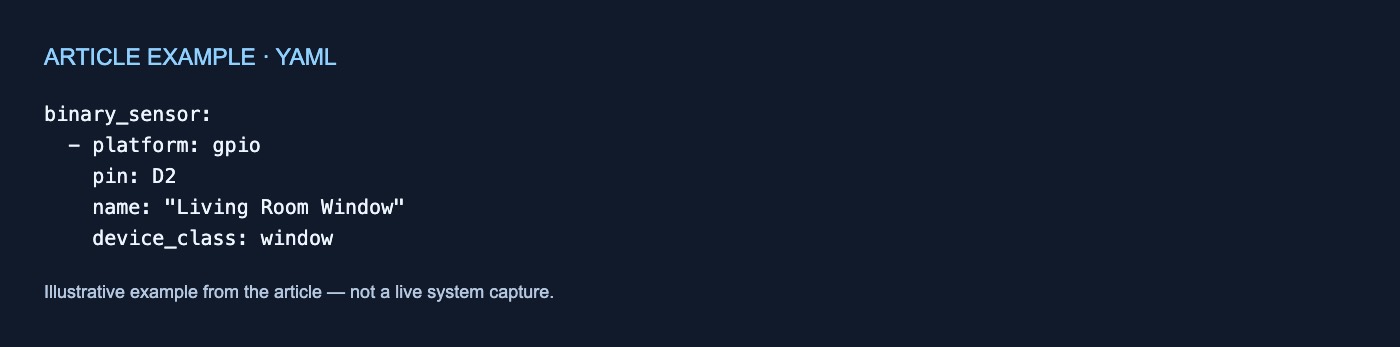
binary_sensor:
  - platform: gpio
    pin: D2
    name: "Living Room Window"
    device_class: window
In this example, the observed input is D2. The name and device class describe the sensor, but neither is the source of its state.
ESPHome documents two ways to observe the pin (ESPHome GPIO Binary Sensor):
- Interrupt mode uses hardware interrupts to detect pin changes.
- Polling mode continuously reads the pin in the main loop.
Interrupt mode is the default on most platforms, while use_interrupt: false selects polling. The documented LibreTiny-based platforms—BK72xx, RTL87xx, and LN882x—default to polling because of hardware limitations (ESPHome GPIO Binary Sensor).
Interrupt mode is available only on internal GPIO pins. External GPIO expanders such as PCF8574 automatically fall back to polling. Interrupts are also disabled when a pin is configured with allow_other_uses: true (ESPHome GPIO Binary Sensor). These choices change how ESPHome observes the input, not which input supplies the state.
The page also gives debounce examples that affect when a pin-derived state is published:
filters:
  - delayed_on: 10ms
This example publishes ON only after the signal has remained high for more than 10 milliseconds. The documented delayed_off: 10ms alternative publishes ON immediately but waits 10 milliseconds before publishing OFF (ESPHome GPIO Binary Sensor). These are examples, not general debounce recommendations.
ESP32 Touch: classify touch-hardware readings
An esp32_touch binary sensor derives its state from the processor’s capacitive-touch hardware. Configuration has two parts: a global touch hub and an individual binary sensor with a required pin and threshold (ESPHome ESP32 Touch Pad).
esp32_touch:

binary_sensor:
  - platform: esp32_touch
    name: "ESP32 Touch Pad"
    pin: GPIOXX
    threshold: 1000
The processor’s internal touch hardware supplies raw readings. The configured threshold determines whether the pad is considered touched: detected touch produces ON, while no detected touch produces OFF (ESPHome ESP32 Touch Pad).
The documentation covers ESP32, ESP32-S2, ESP32-S3, and ESP32-P4 processors and GPIO pins supported for capacitive touch on those processors. It does not establish support for other variants or provide one threshold suitable for every installation (ESPHome ESP32 Touch Pad).
The optional hub setting setup_mode displays touch-pad readings in the logs and is documented as useful for finding thresholds. Processor behavior also differs: readings increase when touched on the S2, S3, and P4, but decrease on the original ESP32. The default measurement and sleep durations are optimized for the original ESP32 and may not work on the other named variants (ESPHome ESP32 Touch Pad).
Home Assistant: import an entity state or attribute
The homeassistant platform imports a value from Home Assistant through ESPHome’s native API (ESPHome Home Assistant Binary Sensor):
binary_sensor:
  - platform: homeassistant
    name: "Input Boolean From Home Assistant"
    entity_id: input_boolean.state_home
Here, the source is the state of input_boolean.state_home, not a local pin. The required entity_id selects the Home Assistant entity. If no attribute is specified, ESPHome imports that entity’s state (ESPHome Home Assistant Binary Sensor).
An optional attribute selects an entity attribute instead:
binary_sensor:
  - platform: homeassistant
    id: muted
    entity_id: media_player.mega_speakers
    attribute: is_volume_muted
In this example, ESPHome imports is_volume_muted, not the media player’s primary state. Attribute imports require Home Assistant 2021.6 or newer (ESPHome Home Assistant Binary Sensor).
The ESPHome node must be registered with Home Assistant even if it only imports a value (ESPHome Home Assistant Binary Sensor). The supplied documentation does not specify delivery timing, state freshness, or behavior while disconnected.
Haier: expose climate-component status
A Haier binary sensor exposes status associated with the Haier climate component identified by its required haier_id (ESPHome Haier Climate Binary Sensors):
binary_sensor:
  - platform: haier
    haier_id: haier_ac
    compressor_status:
      name: "Haier Outdoor Compressor Status"
The optional compressor_status binary sensor indicates compressor activity. The page also documents status sensors for defrost activity, the four-way valve, electric heating, and indoor and outdoor fans (ESPHome Haier Climate Binary Sensors).
These Haier binary sensors are supported only by the hOn protocol. The documentation does not establish support for other Haier protocols or every physical model (ESPHome Haier Climate Binary Sensors).
How to read a declaration
Before adding filters or automations:
- Find the binary sensor’s
platform. - Locate its upstream reference: a
pin, anentity_id, or a component ID such ashaier_id. - Check whether the platform classifies another value, as
thresholddoes for touch readings. - Separate state acquisition from filters that may delay publication.
- Note processor, API, pin, and protocol qualifications.
The practical question is not just what ON means. It is which component supplied or decided that state—and which input that component observed.
Evidence scope: This is a documentation-based explanation. No hardware testing was performed. The cited pages do not establish measured responsiveness, delivery guarantees, electrical requirements, recommended thresholds, or compatibility beyond the named processors, platforms, and protocol.
No comments yet